Managing Customers in Referi
The Customers page is your central place to see who's part of your loyalty programs and how much store credit each customer has. From here you can check balances, see how customers earn and spend credit, and add customers who aren't on the list yet.
Open the Customers page
In your Shopify admin, go to Apps > Referi > Customers.
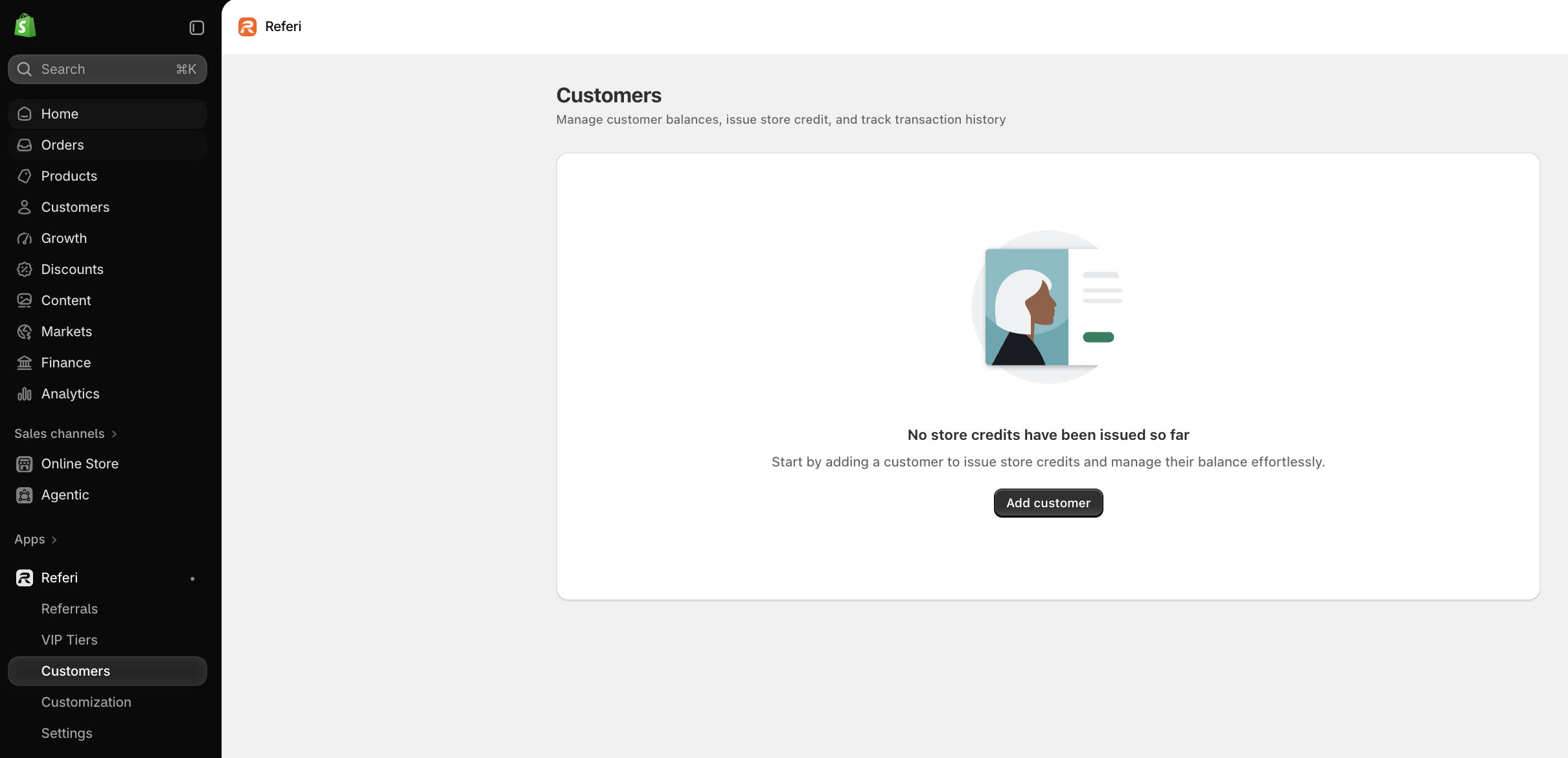
If no customers have joined yet, you'll see a message saying there are no customers. Once customers start earning store credit, they appear in the list automatically.
Read the customer list
Each row shows one customer's store credit at a glance:
| Column | What it shows |
|---|---|
| Name | The customer's name |
| The email address on their customer account | |
| Balance | The store credit they have available right now |
| Spent / Received | How much credit they've used, and how much they've received in total |
| Last activity | The date of their most recent credit activity |
For example, a customer showing 255 USD / 380 USD has received 380 USD in credit and spent 255 USD of it, leaving a balance of 125 USD.
Find the customer you need
Search Type a name or email address in Search customers by name or email to jump straight to a customer.
Sort Click the sort icon next to the search bar to reorder the list:
- Last activity: newest to oldest, or oldest to newest.
- Balance: high to low, or low to high. Sorting from high to low quickly shows who has the most unused credit.
Filter Click Last activity and pick a date or date range to see only customers who were active in that period.
The line above the table, such as Showing 5 items, tells you how many customers match your current search and filters.
Add customers manually
If a customer isn't on the list yet, you can add them yourself.
- Click Add customer at the top right.
- In the Add customers window, search for an existing customer from your Shopify store by name or email.
- Tick the checkbox next to each customer you want to add. You can select several at once.
- Click Add.
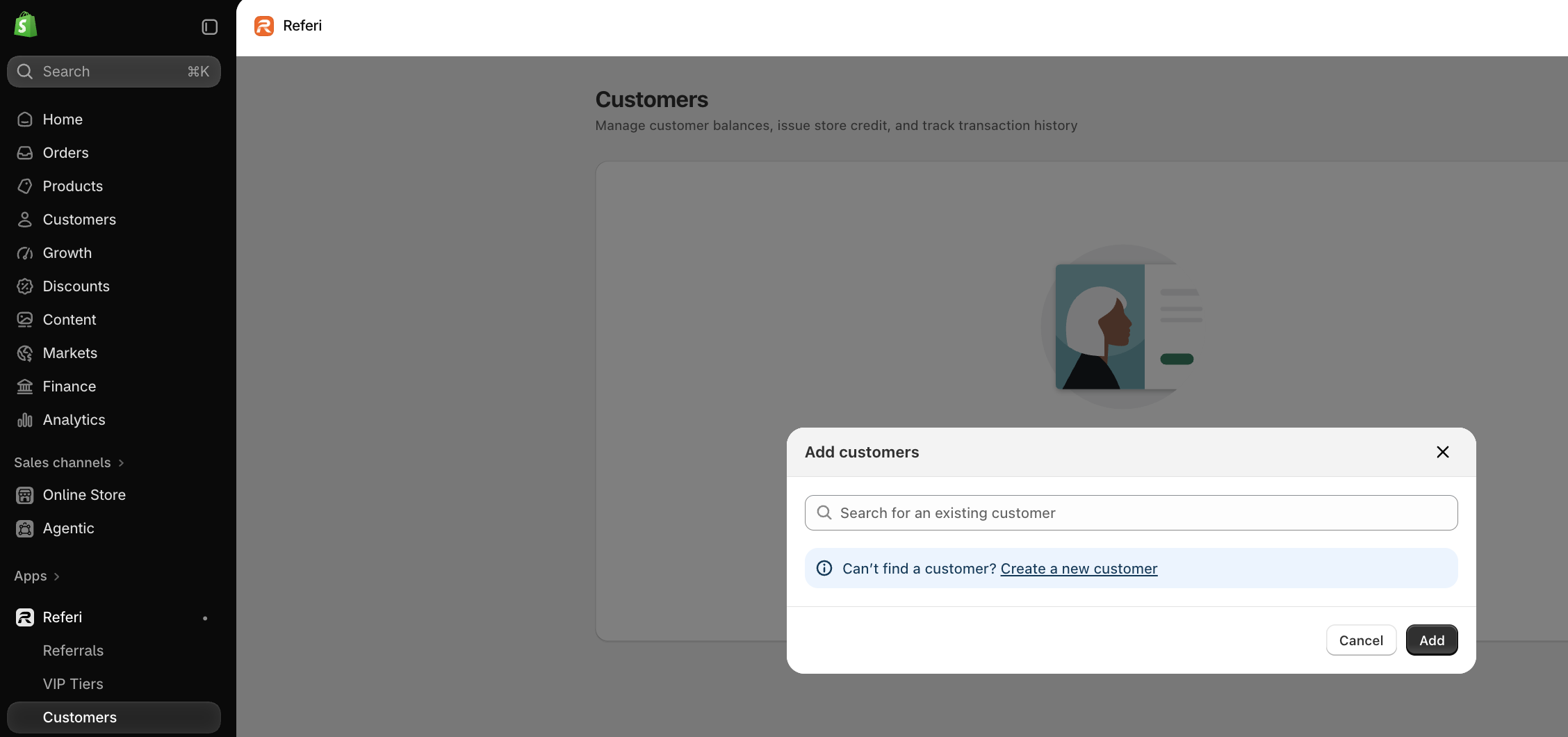
Can't find the customer? They may not have a customer account in your store yet. Click Create a new customer in the window to add their details, then add them to the list.
Refresh the list
Click Refresh at the top right to reload the latest data, for example right after a customer places an order or earns a referral reward.
Need help?
If you have any questions or need assistance, please feel free to contact us at [email protected] . We’ll be happy to help.