How to Set Up the VIP Tiers Announcement Email
Reaching a new VIP tier is a moment worth celebrating. The VIP tiers announcement email congratulates customers on their upgrade and tells them about their new benefits, so they feel valued and have a reason to keep shopping with you.
When the email is sent
Referi sends this email automatically each time a customer reaches a new VIP tier. For it to go out, your VIP tiers program must be activated in Apps > Referi > VIP Tiers.
Open the email editor
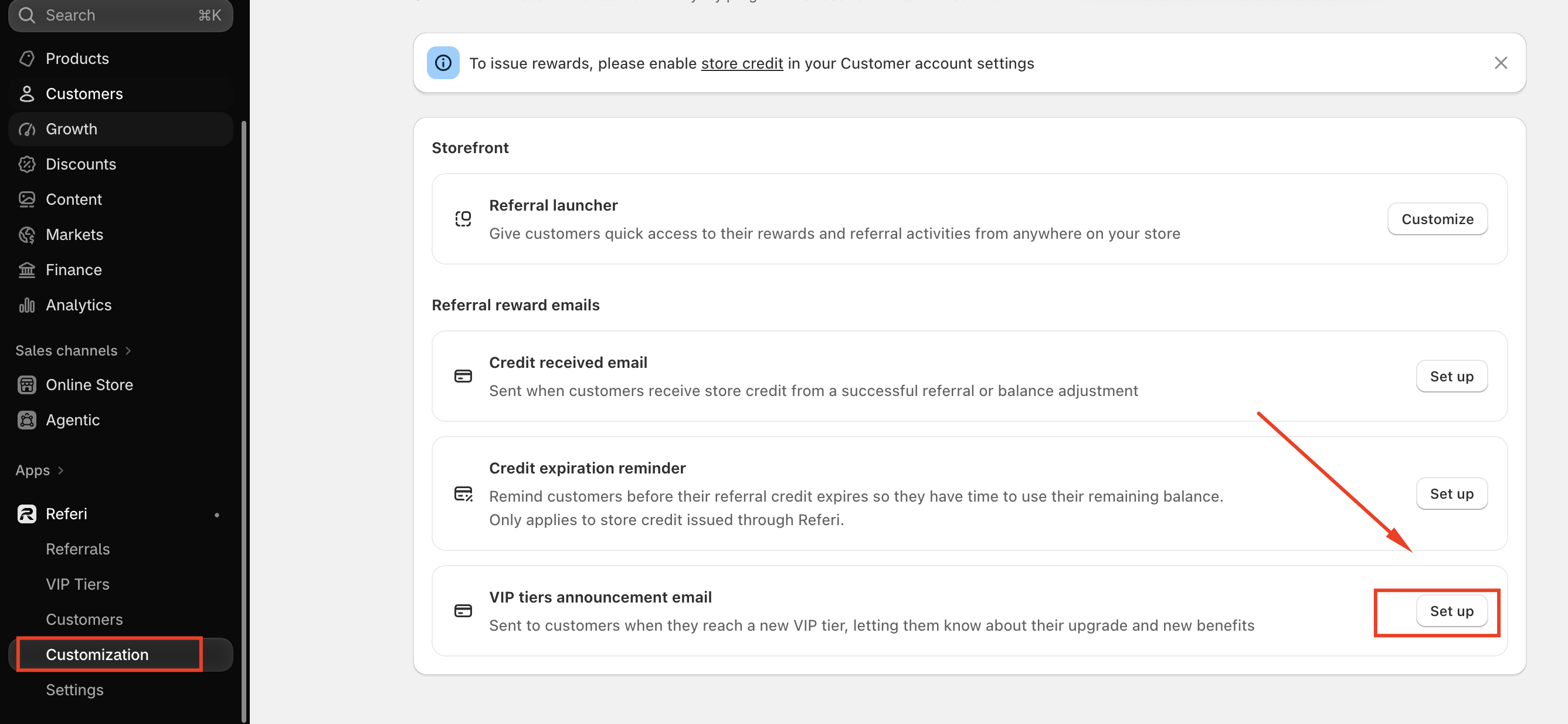
- In your Shopify admin, go to Apps > Referi > Customization.
- Under Referral reward emails, find VIP tiers announcement email and click Set up.
The editor opens with settings on the left and a live preview on the right.
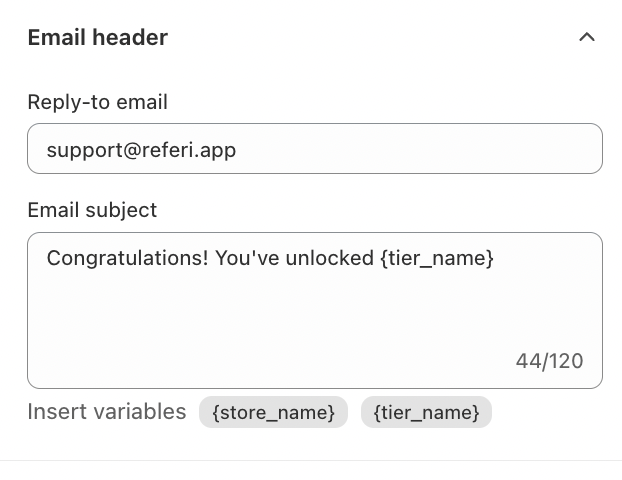
Email header
- Reply-to email: where customer replies go. Change it to your own support address so customers can reach you directly.
- Email subject: the subject line, up to 120 characters. The default is
Congratulations! You've unlocked {tier_name}.
Use {store_name} for your store's name and {tier_name} for the tier the customer just reached, such as Gold. Click a variable to insert it, and Referi fills in the real value for each customer.
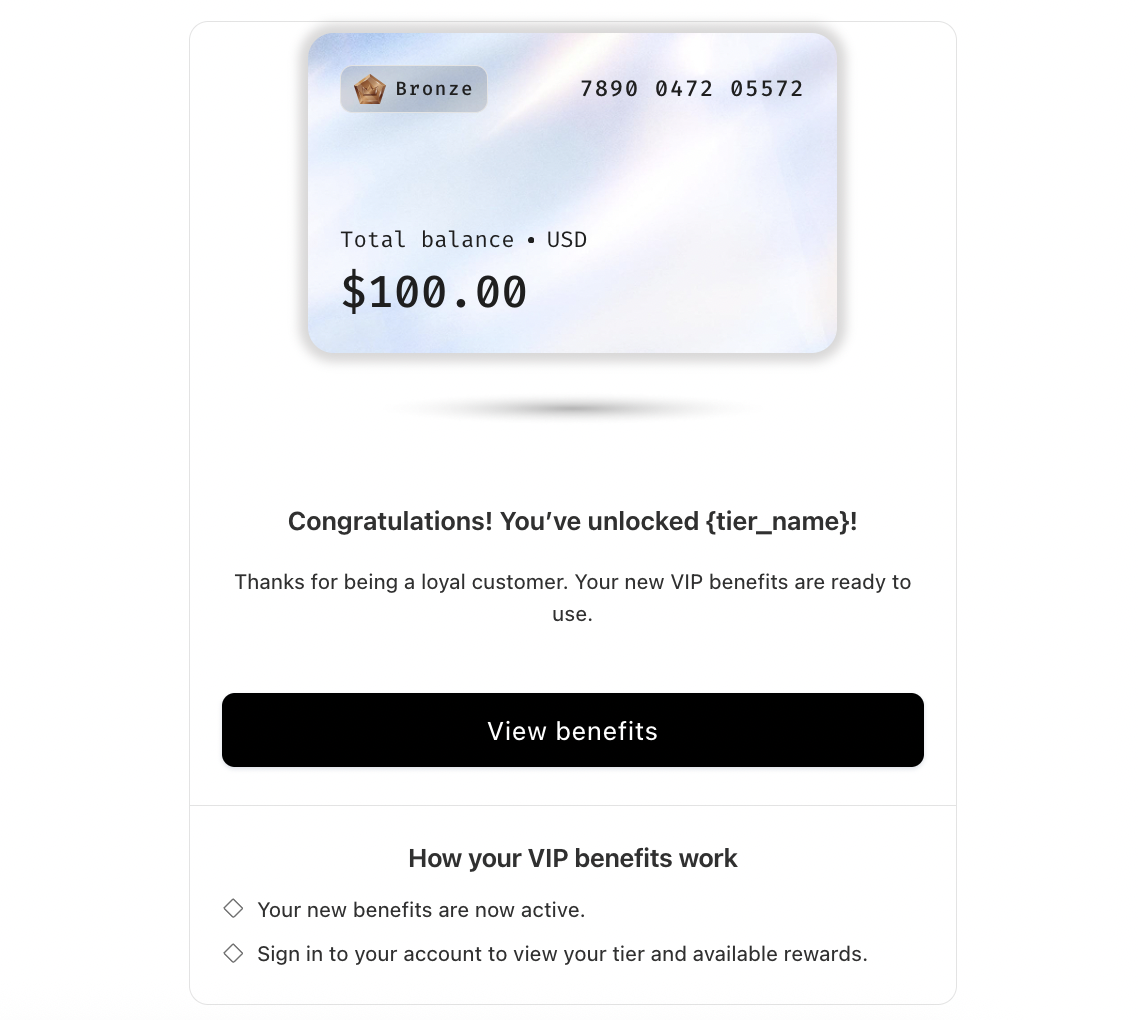
Main content
| Field | What it does | Default |
|---|---|---|
| Heading | The headline, up to 500 characters. Supports {tier_name} and {store_name}. | Congratulations! You've unlocked {tier_name}! |
| Content | A short message under the heading, up to 500 characters | Thanks for being a loyal customer. Your new VIP benefits are ready to use. |
| CTA button content | The text on the main button | View benefits |
| Button redirect | The page the button opens, such as your homepage or a page describing your VIP benefits | yourstore.com |
| Instruction title | A heading for the how-it-works section | How your VIP benefits work |
| Instruction | Tells customers what to do next, up to 300 characters. Put each point on its own line. | Your new benefits are now active. Sign in to your account to view your tier and available rewards. |
Tip: Point Button redirect to a page that explains your VIP benefits, so the button takes customers somewhere useful.
Color settings
Set a hex code and opacity for the button:
- CTA background color: the default is black (#000000).
- CTA text color: the default is white (#FFFFFF).
Keep strong contrast between the two so the button is easy to read.
Preview and save
Check the live preview before you save. It shows the subject line and reply-to address, followed by the full email as customers will see it. When everything looks right, save your changes. From then on, Referi sends the announcement automatically whenever a customer moves up a tier.
Tips for a great announcement
- Name the tier. Using
{tier_name}in the subject and heading makes the upgrade feel personal and real. - Spell out the benefits. Tell customers what's new for them, such as earning more store credit on every order.
- Give them a next step. A clear button and a short instruction help customers start enjoying their benefits right away.
- Use your own reply-to address. Make sure customer questions reach your team.
Need help?
If you have any questions or need assistance, please feel free to contact us at [email protected]. We’ll be happy to help.